
“How To” Training Series
How to Position Your Plum Kit
Plum portable broadband kits are optimized differently depending on the antenna technology inside, and the right operating position comes down to antenna polarity. Plum Cases use Plum’s proprietary antenna array, which features vertical-polarity antennas that perform best when the case is oriented vertically. The PLM Series uses the PLM Case antenna, a horizontal-polarity antenna that performs best when the case is laid flat with the lid closed. Positioning your kit correctly keeps the antennas aligned for the strongest, most reliable performance in the field.
Plum Case Operational Position
The Plum Case uses vertical-polarity antennas, so it performs best oriented vertically, either with the lid completely open or closed and standing upright on its spine.
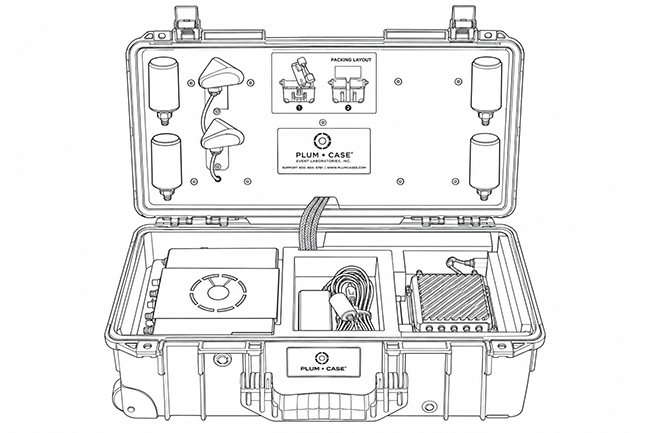
Open Position
Set the case on its base and open the lid fully. This stands the antennas vertical for optimal performance.
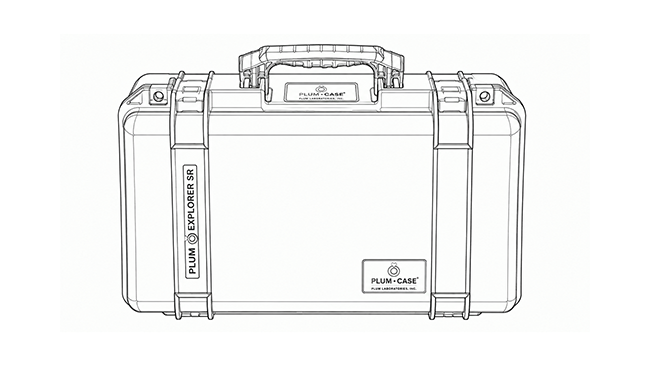
Closed Position
With the lid closed, stand the case upright on its spine. This keeps the antennas vertical for optimal performance.
PLM Case Operational Position
The PLM Case uses a horizontal-polarity antenna, so it performs best laid flat on its base with the lid closed.
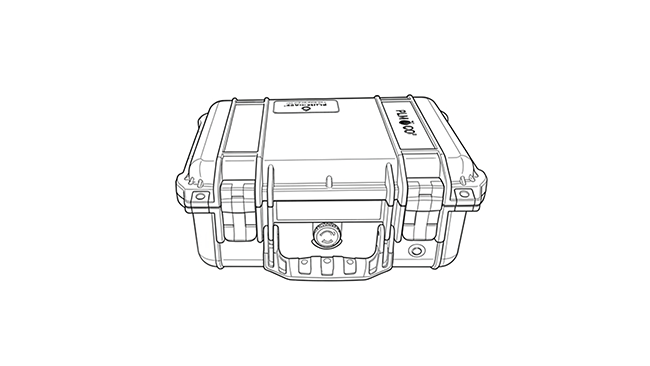
Closed Position
Close the lid and lay the case flat on its base. This aligns the horizontal antenna for optimal performance.
Turn the Plum Case On and Off
- Press and hold the exterior power button for 7 to 10 seconds. You can also press and hold the button on the Plum Power Bank™.
- An illuminated ring on the external button indicates the case is powering on.
Turn the PLM Case On and Off
- Press and hold the exterior power button for 7 to 10 seconds.
- An illuminated ring on the external button indicates the case is powering on.
Connect to a Wi-Fi Network
Wait a few minutes for the gateway to fully boot up before attempting to connect to the Wi-Fi network SSIDs assigned to the Plum Case.
To connect to one of the wireless SSID’s listed:
- Make sure your “Wireless” setting is enabled in your end-user device
- Go to the settings tab of your end-user device
- Pick wireless settings
- Choose which SSID you would like to connect
- When requested, type in the password associated with the SSID you have chosen.
On your laminated sheet you will find the Plum Case SSIDs that have been assigned to your Plum Case along with their associated temporary passwords.
Please note the security on your wireless LAN as a default is set as WPA2-PSK AES encryption type.
Charging the Plum Case
- Connect the charging cord to the charging port on the outside end of the case
- Plum Cases can be charged while operating and with the case closed
Estimated Charging Times
110V Wall charger
- 4-5 hours to charge a single battery pack
- 10-12 hours to charge four batteries in the Plum Power Bank
Solar Panel
- 5-6 hours to charge a single battery pack
USB Port
- 30-40 min to charge an iPhone from the USB port
Plum Power Bank Display Screen
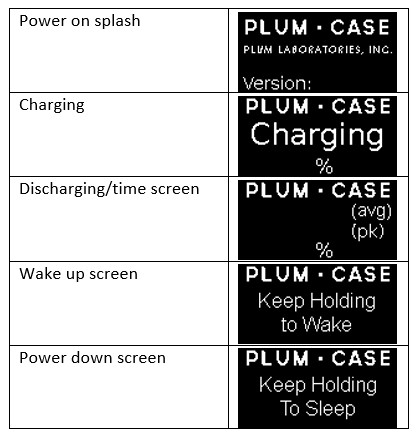
The display is normally off until it is needed to display a screen. Press and release the button on the Plum Power Bank to activate the display. The display is powered up and initialized and the screen will show the data for 10 seconds.
Average and Peak time remaining display
The discharging/time screen shows the time remaining at two current draws:
Average is based on the net Average current as reported by the Plum Smart Battery Packs™.
Peak is based on a net 1-second current measurement from the batteries. This value is a max value since the last charge stopped.
Removing the Plum Power Bank
- Power off the Plum Case
- Unvelcro the straps holding the PPB in place
- Lift up on the strap in the rear and front notch beneath the display/power button on the PPB
- Detach the ribbon connector
Adding Additional Plum Smart Battery Packs
- With the PPB removed, flip the PPB over and remove the two pins holding the door in place
- Open the door
- To add new batteries, simply place a new battery in the orientation listed on the bank you are adding a battery pack to
- To remove batteries, simply pull the tab outward
Storage
The PPB can be stored while plugged in, the PPB prevents battery pack degradation during prolonged charging periods. The battery pack will lose roughly 5% of its energy/month while being stored. If they are to be stored for prolonged periods, we recommend that the battery packs are fully charged and then removed from the PPB until ready for use.
Alternatively, if you choose to leave the battery packs installed in the PPB, we recommend that you charge your case at least once every 6-12 months.
Transportation
Plum Cases equipped with the Plum Power Bank are air travel compliant.
| Allowed in Carry-on Baggage | Allowed in Checked Baggage | |||
|---|---|---|---|---|
| In Equipment | Spares | In Equipment | Spares | |
| Li-ion <100 Wh (Plum Smart Battery Pack) | Yes | Yes (when protected from short circuit) | Yes | No |
| Li-ion > 100 Wh | Yes (airline approval required) | Yes (airline approval required) | Yes (airline approval required) | No |